Get started in minutes
Install Docs Estimator, open it from Google Docs, enter your proposal details, add a client and line items, review the calculation, choose a style, and insert the proposal into your document. Here's the workflow in four steps.
Install
Install Docs Estimator from the Google Workspace Marketplace and complete Google's authorization flow.
Open a Google Doc
Open the document where you want the finished estimate or proposal to be created.
Build the proposal
Enter the proposal title and scope notes, select a client, and add your line items and pricing.
Insert the result
Review the totals and settings, select a document style, then generate the proposal in Google Docs.
What is Docs Estimator?
Docs Estimator is a Google Docs add-on for creating professional estimates and proposals directly from a sidebar. Instead of building a pricing table and commercial details by hand, you assemble the proposal in the add-on and generate a formatted document from what you entered.
Scope, client details, line items, pricing, taxes, discounts, additional charges, business information, templates, and document styles all live in one place — so the finished proposal comes together without switching tools.
Proposal Builder
Create the current estimate or proposal, manage its scope, client, line items, and pricing.
Client records
Save client information so recurring proposals do not require the same details to be typed repeatedly.
Reusable templates
Save a working proposal setup and load it again when you prepare a similar project.
Google Docs output
Generate the finished proposal in the current Google Docs document using your selected settings and style.
Before you start
You'll need a Google Account, access to Google Docs, and a document you want the estimate or proposal created in. Docs Estimator must also be installed for the Google Account you're using.
- A Google Account with access to Google Docs
- A Google Doc open and ready for the proposal
- Docs Estimator installed for that account
- Any client details, pricing, or branding assets you plan to include
Google's installation and authorization screens can ask you to choose an account. Review the account and permissions before continuing.
How to install Docs Estimator
Step 1 — Open Google Workspace Marketplace
Open the Google Workspace Marketplace and search for Docs Estimator. Use the official product listing when installing the add-on.
Open Google Workspace Marketplace
Step 2 — Review the listing
Before installation, check the product name, publisher information, description, and permissions shown by Google.
Step 3 — Install the add-on
Choose the installation option shown by Google and follow the on-screen instructions.
Step 4 — Complete authorization
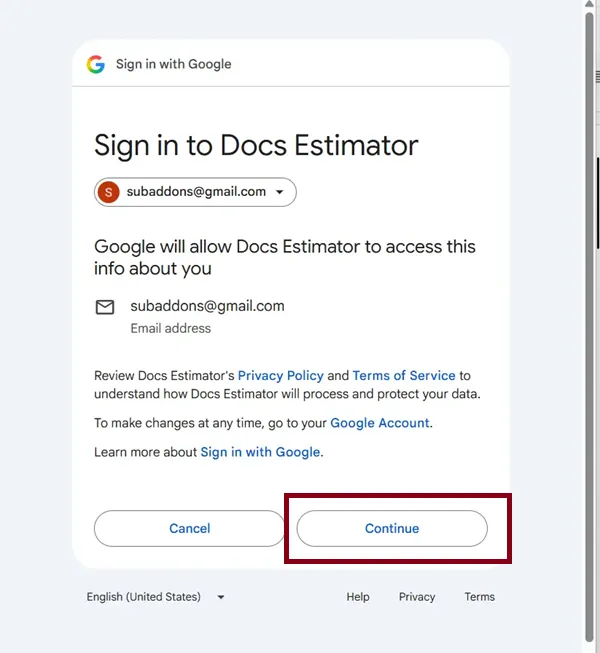
Google may display an authorization screen. Review the requested access and continue only if you are comfortable granting the permissions required by the add-on.
Step 5 — Return to Google Docs
Open the Google Docs document you want to use and launch Docs Estimator from the Google Docs add-on/Extensions interface.
How to open Docs Estimator in Google Docs
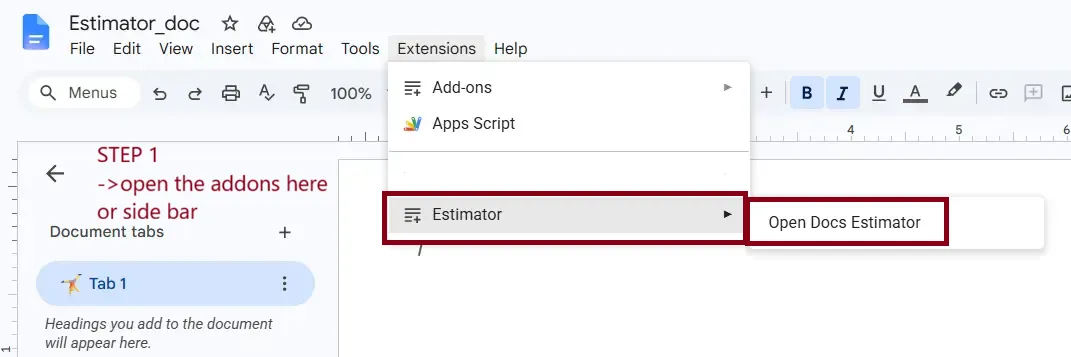
- Open Google Docs and open the document you want to work on.
- Open the Google Docs Extensions/add-on interface.
- Find Docs Estimator.
- Choose the action that launches the Docs Estimator sidebar.
- Wait for the sidebar to load.
Create your first estimate or proposal
The Builder is your main workspace. Start with the proposal information, then build the commercial details underneath it.
Step 1 — Enter the proposal title
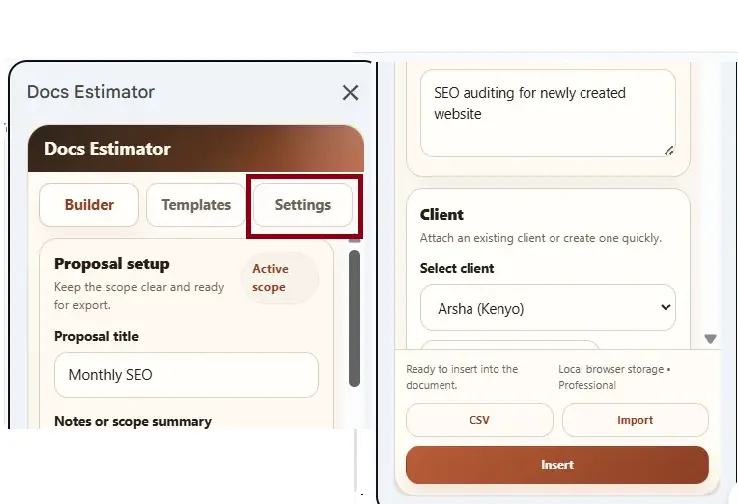
Give the proposal a clear title, such as “Website Redesign Proposal” or “Monthly SEO Services”.
Step 2 — Add scope notes
Use the notes area for scope context, deliverables, timeline assumptions, exclusions, or anything else you want included with the proposal.
Step 3 — Select a client
Choose an existing client, or add a new one without leaving the Builder.
Step 4 — Add line items
Add each service, product, deliverable, package, or other billable item, along with its quantity and rate.
Step 5 — Review the price
Check the pricing summary against your quantities, rates, discounts, taxes, and additional charges before moving on.
Step 6 — Choose the output style
Pick the proposal format you want, then generate the finished document.
Add and manage clients
Docs Estimator lets you attach an existing client to a proposal or create a new client while you are building it.
| Client field | Purpose |
|---|---|
| Client name | The person or client contact associated with the proposal. |
| The client's email address. | |
| Company | The client's company or organization. |
| Address | The client's address or other address information. |
After saving a client, select that client from the client selector to attach the record to the current proposal. You can also remove the selected client when needed.
Add and manage line items
Line items are the individual priced components of your estimate or proposal. Add one item for each service, deliverable, product, package, or other charge you want to show in the proposal.
| Field | What it controls |
|---|---|
| Name | The client-facing name of the item. |
| Description | What is included, delivered, or provided. |
| Quantity | The quantity used for the line-item calculation. |
| Rate | The price applied to the quantity. |
| Unit | The unit associated with the quantity. |
| Discount | The percentage discount applied to the individual item. |
| Internal note/code | Optional internal reference such as a SKU, phase, or team. |
| Secondary note | Optional grouping, location, milestone, or similar reference. |
Supported units include:
You can edit line items, duplicate an item when a similar row is needed, or remove an item from the proposal.
Understand pricing, taxes, and discounts
Docs Estimator builds the commercial summary automatically from the proposal information and line items you enter.
Pricing summary
The pricing breakdown can include the subtotal, item-level discounts, taxes, additional charges, a proposal-level discount, and the grand total.
Item-level discounts
Apply a percentage discount to an individual line item when a particular service or deliverable needs its own adjustment.
Proposal-level discount
Set a discount percentage across the whole proposal, independent of any line-item discounts.
Taxes
Configure a single tax or a dual-tax setup, each with its own label and rate. You can also choose whether tax is calculated on the net total or the discounted value.
Additional charges
Two customizable charge fields are available for costs like delivery, setup, onboarding, or service fees — rename them to fit the project and set the amounts.
Configure currency and number formatting
Use the settings area to control how monetary values are displayed in the proposal.
- Currency symbol
- Decimal places
- Thousands separator
- Decimal separator
- Total rounding
Available rounding options include no rounding, 0.05, 0.10, 0.25, 0.50, and 1.
Choose a proposal style
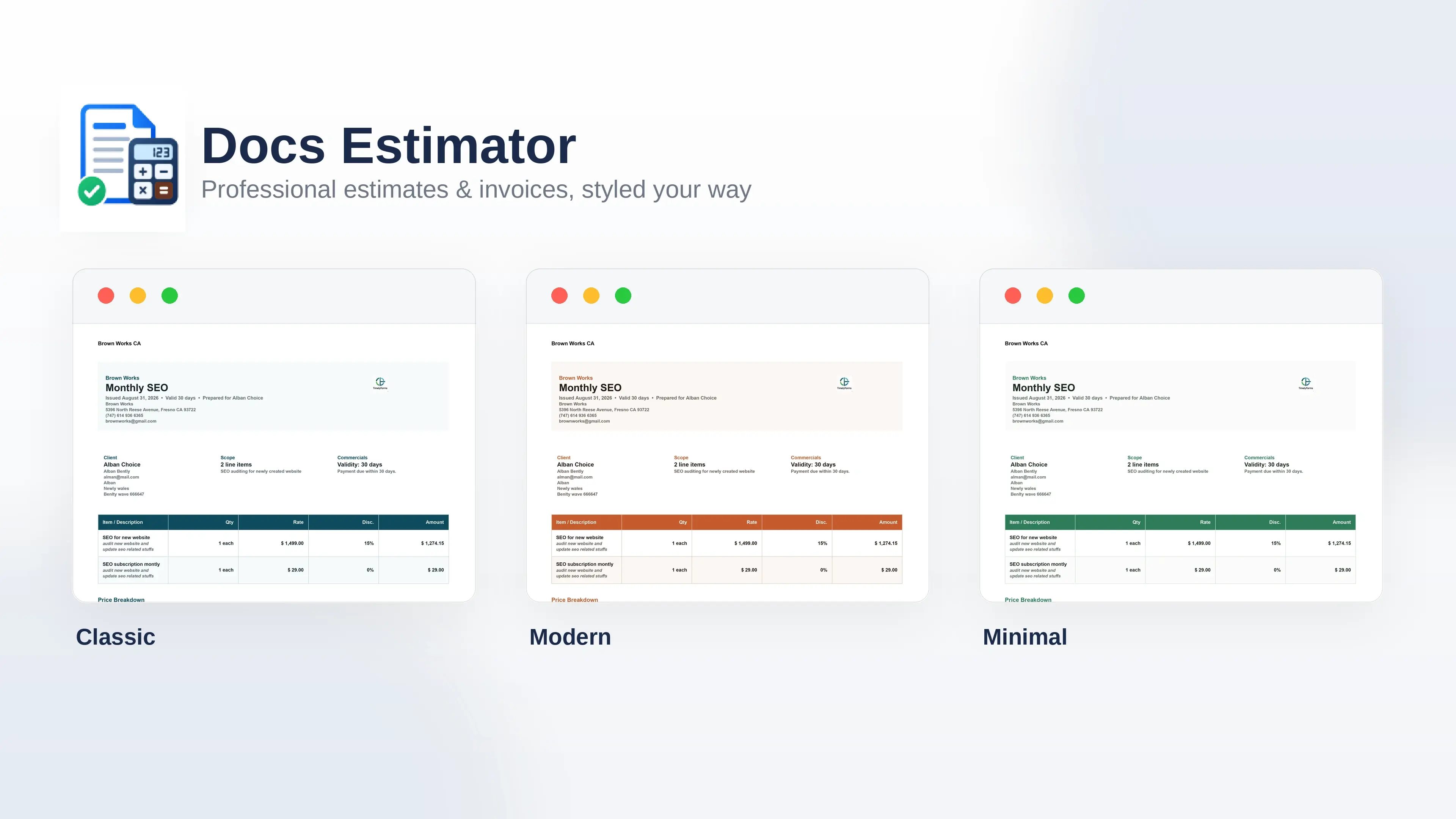
Docs Estimator provides four proposal styles for the generated Google Docs output.
Modern
A contemporary proposal layout for a clean, current presentation.
Professional
A business-focused layout suitable for formal client proposals.
Classic
A traditional document treatment for straightforward proposals.
Minimal
A restrained layout that keeps attention on the proposal information and pricing.
Customize business information and proposal terms
Use Settings to configure the business details that can be used in generated proposals.
- Company or brand name
- Company address
- Phone
- Logo
- Proposal validity period
- Terms and payment notes
Logo
Docs Estimator supports a logo upload and a logo URL fallback. Configure the logo before generating the proposal if you want your branding included in the output.
Validity and terms
Set the proposal validity period and add the terms or payment notes that should appear in the generated document.
Save and reuse proposal templates
Templates are useful when you repeatedly create similar estimates or proposals. Save a working setup once, then load it when you need the same structure again.
Save a template
Enter a template name and save the current proposal setup.
Load a template
Select a saved template and load it into the Builder to reuse its setup.
Review templates
The Templates tab lists saved templates with their item count and selected format.
Delete a template
Remove templates you no longer need from the saved template list.
Import and export line items with CSV
Move proposal line-item data into and out of Docs Estimator using CSV.
CSV fields
When to use CSV
CSV can be useful when you maintain a larger set of services or pricing outside the add-on, or when you need to move line-item information between workflows.
Insert your proposal into Google Docs
When the proposal is ready, use the application's insert/generate action to create the formatted proposal in the current Google Docs document.
- Finish the proposal title and scope notes.
- Confirm the selected client.
- Review every line item, quantity, rate, and discount.
- Check tax and additional-charge settings.
- Confirm the currency and rounding settings.
- Select the proposal style.
- Generate or insert the proposal into the open Google Doc.
- Review the generated document before sending it to the client.
What can appear in the generated proposal?
Depending on your settings and chosen style, the generated document can include proposal metadata, business and client information, the line-item table, pricing breakdown, discounts, taxes, additional charges, scope notes, terms, signature areas, and branding.
Common issues and fixes
Docs Estimator does not appear
- Confirm the add-on is installed for the Google Account you are using.
- Refresh Google Docs.
- Reopen the document.
- Check the Google Docs Extensions/add-on menu again.
The sidebar does not load correctly
- Refresh Google Docs.
- Reopen the document.
- Launch Docs Estimator again.
- If the issue continues, contact support.
The client information is missing
Check that the correct client is selected in the Builder. If it is a new client, verify that the client record was saved before continuing.
The total is not what you expected
Review quantity, rate, item-level discounts, proposal-level discount, tax mode, tax basis, tax rates, additional charges, and rounding.
The generated proposal is not formatted as expected
Check the selected proposal style and your business, logo, validity, and terms settings. Then generate the document again.
Authorization problems
Make sure you are signed into the intended Google Account and follow Google's authorization flow. Do not disable browser or Google security controls to work around an authorization message.
Data, privacy, and permissions
Docs Estimator uses browser storage for proposal drafts, saved clients, and templates. Billing and account status are handled through the separate service used by the product.
The add-on also requests Google permissions needed for its Google Docs workflow. Review Google's authorization screen before granting access.
Frequently asked questions
What is Docs Estimator?
Docs Estimator is a Google Docs add-on for building priced estimates and proposals, managing clients and reusable templates, and inserting a formatted proposal into the current Google Doc.
Can I save proposal templates?
Yes — save a working proposal setup as a reusable template, load it later, and delete templates you no longer need.
Can I import and export line items with CSV?
Yes, CSV import and export are supported for proposal line-item data.
Can I customize taxes and discounts?
Item-level discounts, a proposal-level discount, single or dual tax configuration with custom labels and rates, and a selectable tax calculation basis are all supported.
Can I add my company branding?
Business settings cover your company information and logo, plus proposal validity and terms or payment notes.
Can I use different proposal designs?
Yes — choose from Modern, Professional, Classic, and Minimal proposal styles.
Can I add additional charges?
Two customizable additional-charge fields let you name the charge and set its amount.
Where can I get help?
Use the support/contact options on the Docs Estimator website for installation, product, account, billing, or technical questions.